Process Maps are associated with both Batch Profiles and Document Types. Process Maps define the workflow steps that Quillix Capture will use to automate the processing of Batches and Documents. Designing a process map works the same way with both Batch Profiles and Document Types with a few minor exceptions:
Process Maps in Quillix Capture use a 2-step Design/Active implementation methodology. This provides the administrator/designer the opportunity to work on an in-progress "design" version of the process map while the current "active" version is being used by the system. Process Map design is always done on an inactive, in-progress version of the map. It is important to consider that changes to the process map and settings do not take "effect" until the process map is activated.
Process Map Activation
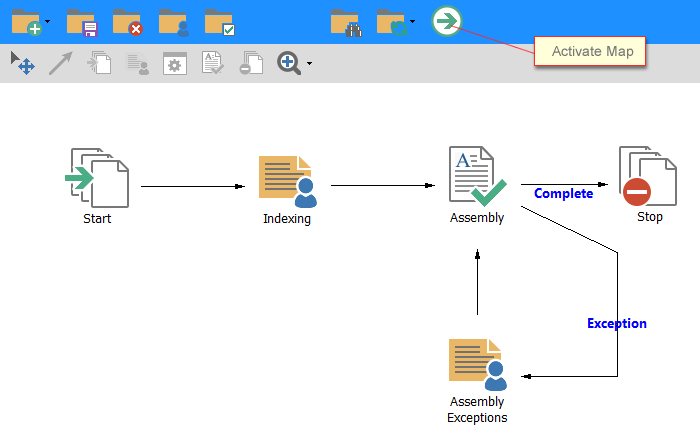
Process Map Activation is performed by clicking the Process Activation button on the Batch Profile or Document Type toolbar. Process Map Activation will also perform a number of design checks to ensure that all steps on the process map have been configured and that all required inbound and outbound routes have been created.
Figure 1 - Activate Process Map
A Process Map consists of a combination of process steps (components represented by icons) connected by one or more process routes (lines with arrowheads depicting the direction of process flow).
Start and Stop

A Process Map must begin with a single Start event, and end with at least one or more Stop events.
Queue

A Queue is a step in the process where items are "queued" for working by one or more people who have been granted access (or assigned) to the queue. There is no limit to the number of queues that can be placed on a process map. However, every queue on the map must have at least one inbound route and can only have one outbound route. Right-click on the queue to see properties, such as Max Cases to Display and Queue Filtering.
QSX Components
A QSX is an automated step performed by a specialized component on the server as part of the workflow process. For example, reading a barcode, performing a database query, etc. QSX components usually have their own configuration settings, accessed by right-clicking on the component icon and clicking on the "Configure" menu option. Each QSX Component must be properly configured before the process can be successfully activated.
There is no limit to the number of QSX components that can be placed on a process map. Each QSX component must have at least one inbound route.
Each QSX component defines its own required outbound routes, and may generate an error at the time of process map activation if each the required outbound routes are not configured.
Assembly

The purpose of the Quillix Assembly Event is two-fold; to verify that all pages in a batch have been assigned to documents, and to initiate the document-level workflow process for each document.
Verifying Batch Pages
At the start of a Batch Profile process, a Quillix case will usually contain only un-indexed and un-associated batch pages. The purpose of the Batch Profile process is to classify the un-indexed batch pages into documents by automated or manual means. In most cases the desired outcome at the end of a Batch Profile process is for all pages of the batch to have been associated with documents, resulting in a zero (0) page batch. The Assembly Event is a mechanism that is usually placed at the end of a Batch Profile process, just before the Stop Event. The Assembly Event can be configured to route cases to an exception path if there are un-indexed and un-associated pages remaining in the batch at that point.
Initiating the Document-level Workflow Process
In addition to the Batch Profile workflow process, which provides processing within Quillix at the batch level, Quillix provides a Document-level workflow process that is invoked on a per-document basis based on the document's Document Type. A given document's individual workflow process is initiated by the Assembly Event in the Batch Profile process.
The Assembly event must also be configured prior to process activation. To configure the Assembly step, right click on the Assembly event icon, then click the "Configure" menu option. See the topic Configuring the Assembly Event for more information.
A Process Map is designed by selecting a component tool from the Process Map Toolbar, placing desired components on the map, and linking them with routes using the "Draw Link" tool.
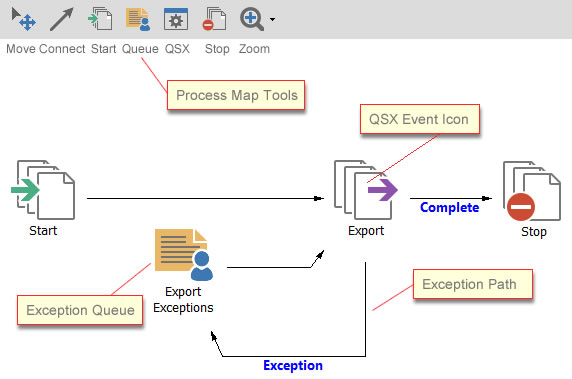
Figure 3 - Process Map Toolbar and Components