Case Toolbar
The Quillix Case Toolbar provides access to queues and case related functions. Since all application tabs interact with queues and cases, the Case Toolbar is available from all application tabs.

Figure 1 - Case Toolbar
Working with the Case Toolbar
You can use the Case Toolbar to select a queue to work, select cases in a queue, complete, unlock or delete a case, set the case status, and enable or disable one of the auto modes, Auto Load and Zoom To Zone.
- Queue Selection - The Queue Selection drop down is used to select the current queue. Only queues that you are assigned to will be displayed.
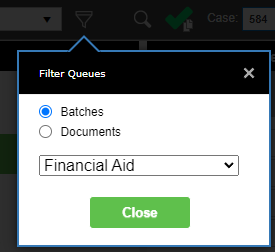
- Queue Filter - The Queue Filter button is to the immediate right of the Queue Selection drop down. It opens the 'Filter Queues' dialog which may be used to show the queues for a particular batch profile or document type.
-
- Case Search - Opens a window to search for cases in the currently selected queue. The 'Move results to Case List' button will move the search results to the Case List. This allows you to use 'auto-load' with case search results.
- Complete All - Allows completing all unlocked cases in the current queue. This is limited by the max number of cases allowed to be seen in the queue, as set by the system administrator.
- Case Selection - The Case Selection drop down is used to select a case to work from the current queue.
- Refresh - Refreshes the list of cases in the Case Selection drop down.
- Auto Load - Toggles the Auto Load mode on and off. When Auto Load is ON, the next available case will be automatically loaded when a case is completed.
- Zoom To Zone - Toggles the Zoom To Zone mode on and off. When Zoom To Zone is ON, Document Viewer will zoom to preset coordinates during indexing when the focus is set to a field with a Zoom Zone defined. Zoom Zones are defined in the Process Manager by selecting 'Auto Zoom' when defining a zone. Please see the Administrator Reference document for more information.
- Complete - Completes the currently loaded case.
- Unlock - Unlocks the currently loaded case.
- Delete - Deletes the currently loaded case. This button is only available if you have been assigned the Delete right by your system administrator.
- Case Status - The Case Status drop down is used to set the current Status of the case. Available Status values are defined by a system administrator as part of the Process Design.

Figure 2 - Case Toolbar Diagram
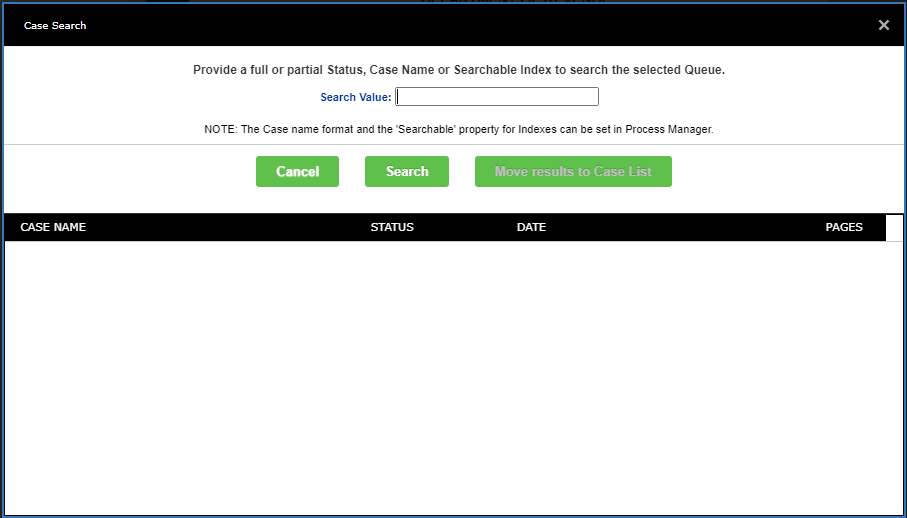
Figure 3 - Case Search
In addition to the Case Toolbar, most case functions are available from a context menu when a case is loaded. This image shows all the available functions on the context menu. Depending on your permissions, some of these functions may not be present.
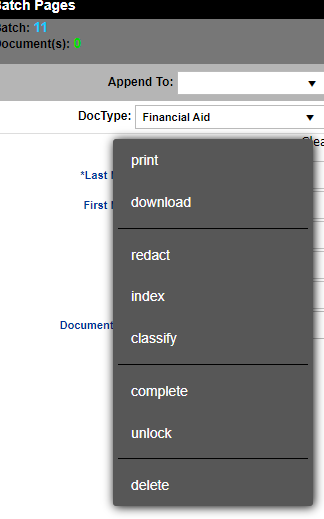
Figure 4 - Context menu
Related Topics