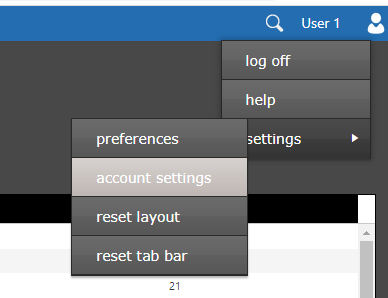
When authenticator use is enabled by the system administrator, users may setup their authenticator app in the Quillix Capture Web Client. Start by opening the 'account settings' window. This can be done by clicking the user name field in the top right corner of the window. This will display the user menu. Select 'settings', then 'account settings'.
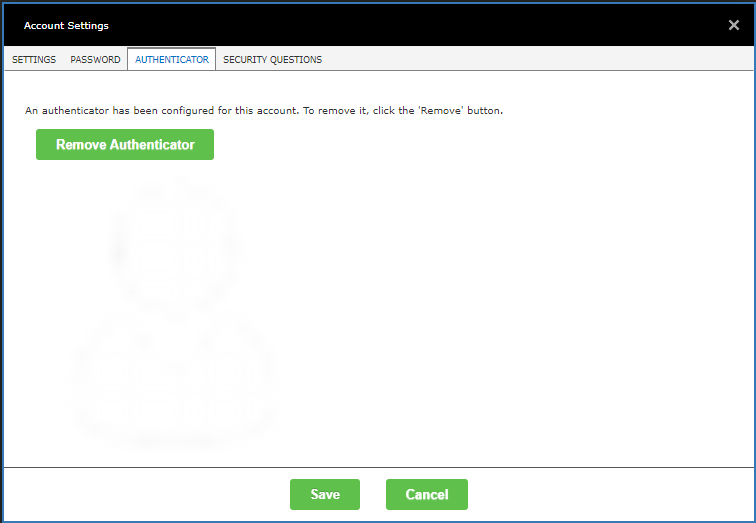
The 'account settings' window will be displayed. Select the 'authenticator' tab. If the tab is disabled, then your system administrator has not enabled this feature. If your account has an authenticator, you should see the following:
If your account is not configured to use an authenticator, you should see this window:
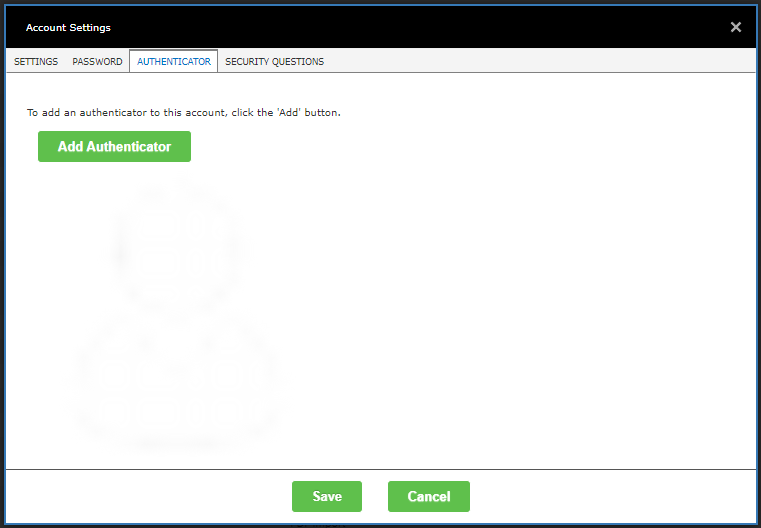
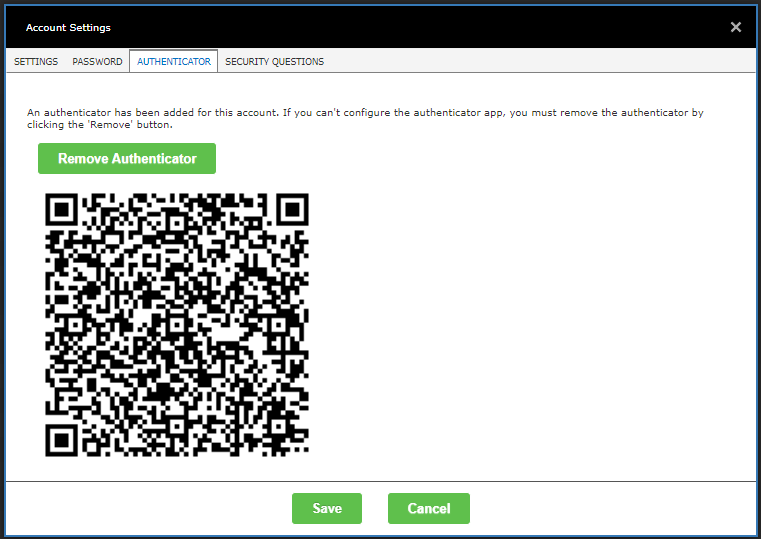
If you click 'Add Authenticator', a QR code will be created and displayed. Scan this QR code with your authenticator app to configure it. You may use any authenticator app that implements the TOTP (RFC 6238) standard. Applications that will work include Twilio Authy, Google Authenticator, Microsoft Authenticator and Symantec VIP Access. You are not limited to using one of these four applications - any app that implements TOTP is acceptable.
At this point, the authenticator code has already been added to your Quillix login. If you are unable to setup your authenticator app, you must use the 'Remove Authenticator' button. If you don't, you will be unable to login because you won't be able to provide the authenticator code to the login dialog. If this happens, your system administrator will be able to remove the authenticator from your account.