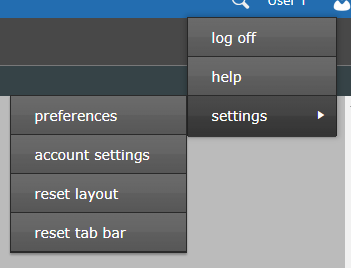
The Preferences Dialog provides access to a variety of settings and options for the Quillix Web Client. The Preferences Dialog is access by clicking on the User Icon on the far right of the Tab Bar while logged in to the Quillix Web Client. Select settings, then preferences from the menu.
Figure 1 - Preferences Menu
The Preferences Dialog is organized into four categories accessible by clicking on the tab corresponding to the category you wish to change.
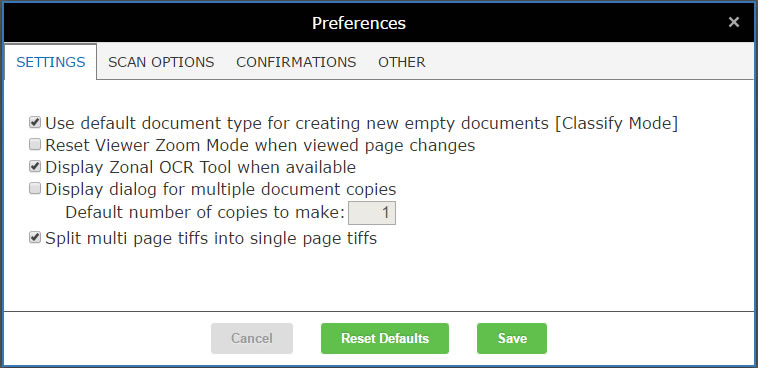
Figure 2 - Preferences Dialog
A description of each setting is explained by category below:
| Setting | Description |
| Use default document type for creating new empty documents [Classify Mode] | In Classify Mode only, this setting when enabled will cause new documents created using Classify Mode to be created with the Default Document Type associated with the Batch Profile. |
| Reset Viewer Zoom Mode when viewed page changes | By default the Viewer Zoom Mode will not change unless a different mode is selected form the Viewer Toolbar. This setting will cause the Viewer Zoom Mode to revert to Rubber Band Zoom Mode whenever a new page is displayed in the Viewer. |
| Display Zonal OCR Tool when available | This setting will cause the Zonal OCR Tool to be displayed for document types that have OCR zones configured. Turning this setting off will prevent the Zonal OCR Tool from being displayed, even if OCR zones are defined. |
| Display dialog for multiple document copies | |
| Split multi page tiffs into single page tiffs |
| Setting | Description |
| Auto Rotate | The Auto Rotate Feature provides for automatic image rotation during scanning or importing for TIFF image types. |
| Auto Rotate: Off | Auto Rotate Feature is disabled. |
| Auto Rotate: Always Rotate Clockwise | Images will always be rotated 90 degrees clockwise (right). |
| Auto Rotate: Always Rotate Counter Clockwise | Images will always be rotated 90 degrees counter-clockwise (left). |
| Auto Rotate: Always Flip | Images will always be rotated 180 degrees (flipped). |
| Auto Rotate: Intelligent | Quillix will attempt to determine the correct orientation automatically. This feature requires the presence of mixed-case, English text on the document. Rotation can be incorrect when insufficient text is found. |
| Setting | Description |
| Show confirmation dialog when saving index values | A confirmation dialog is displayed before the index values are saved. |
| Show confirmation dialog when releasing local batches from the Index Page | A confirmation dialog is displayed before a case is completed in the local queue from the Index Panel. |
| Show confirmation dialog when releasing local batches from the Capture Page | A confirmation dialog is displayed before a case is completed in the local queue from the Capture Panel. |
| Show confirmation dialog when completing cases from a queue | A confirmation dialog is displayed before a case is completed from any queue other than the Local Queue. |
| Show confirmation dialog when unlocking a case | A confirmation dialog is displayed before a case is unlocked. |
| Show confirmation dialog when deleting a case | A confirmation dialog is displayed before a case is deleted. |
| Setting | Description |
| Reset Display Selections | |
| Case Toolbar Tool Selections | |
| Capture Selections (Selected Source and Selected Profile) | |
| Thumbnail Viewer Toolbar Selections |