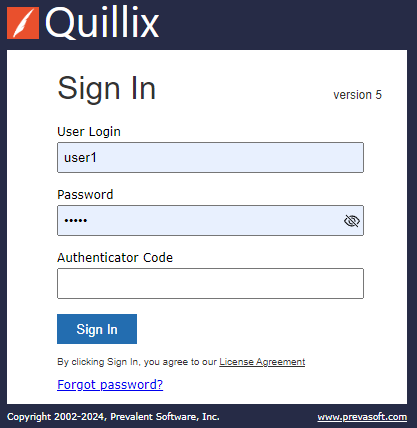
To start using the Quillix Web Client application, a valid user Login and Password must be entered into the appropriate fields at the Sign In screen. If you have attached an authenticator to your account, you must also enter the code from your authenticator app before clicking 'Sign In'. If you have not attached an authenticator to your account, you may leave the 'Authenticator Code' blank. By entering your Login information and clicking Sign In, you are agreeing to the Prevalent License Agreement. To view the license agreement before signing in, click on the License Agreement link below the Sign In button.
Figure 1 - Quillix Sign In Screen
Your Quillix Login and Password are unique to you and should be kept safe. Everything that you do in Quillix Web while logged in is recorded in the Quillix Report Log as being done by you. Never give your login and password to another person.
To enhance the security of your account, you may attach an authenticator app to your Quillix account. Instructions can be found here.
You will not see the 'Forgot password?' link unless your system administrator has enabled this feature. Use of this feature requires the prior configuration of your email address and security questions. Instructions can be found here.
If you have forgotten your login or password and have not setup your email address or security questions, you must contact your system administrator to have your password reset. There is no way to change your password from Quillix Web unless Quillix knows your email address or security questions.