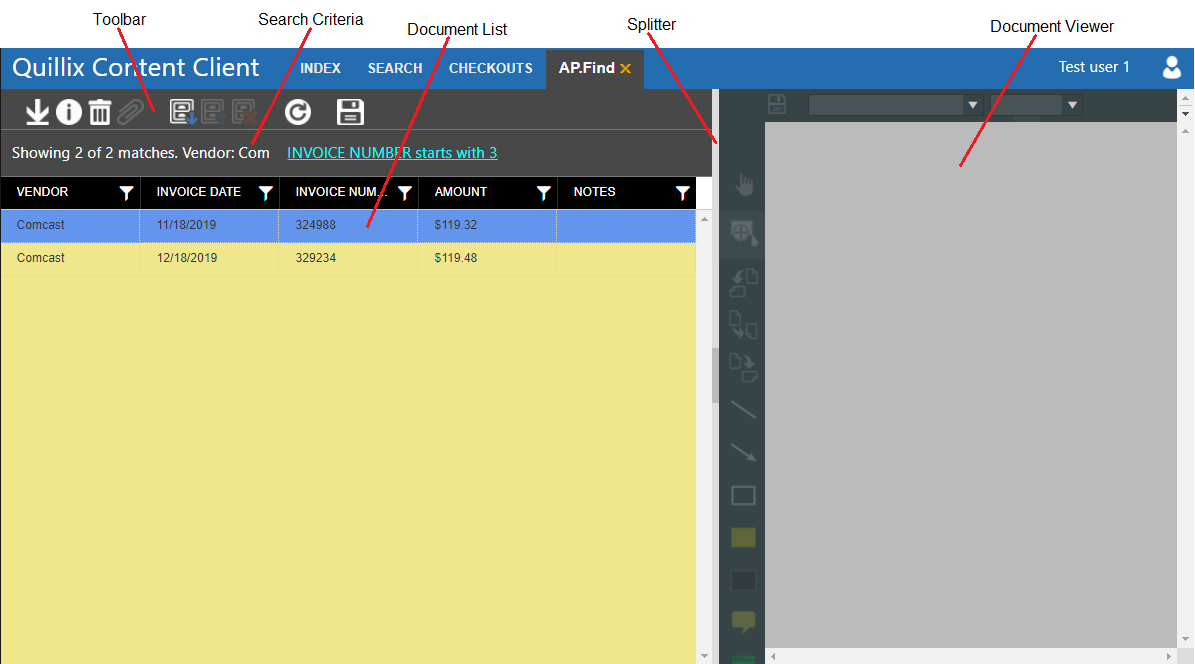
Figure 1 - Result Panel Layout
Result Panels are used to show the results of a search for documents. A search can be started from the Search Panel using the "Execute Search" button or from the Checkouts Panel using the "View Document" button. Result panels are created as needed by one of these two methods. The title of the Result Panel will be either the name of the Query used to open the panel (when created by the Search Panel) or the string "Document" (when created by the Checkouts Panel). When a search is executed and a Result Panel is needed, the open panels are checked first. If one already exists with the desired name, it is reused to show the results of the new search.
For example, in the image below, we can see the results of running the query named "AP.Find" with a search value of "Com". If we go to the Search Panel and select the "AP.Find" query, provide a search value of "Kaiser" and click the "Execute Search" button, the current AP.Find result tab will be reused - the current document list will be cleared and the new results will be populated. Similarly, the "View Document" button on the Checkouts Panel will reuse the result tab named "Document".
You may have a maximum of eight (8) result panels open at one time. If you try to run a search that would need a ninth panel, you will get an error message.
Each Result Panel is divided into four sections. A toolbar, an area to show the search criteria, a list of documents and a document viewer. Each row in the document list is a single document. The columns show the fields assigned to that document and the viewer will show the files assigned to that document. There is also a splitter between the viewer and the other sections. Dragging the splitter will resize the viewer pane. You may also click the darker section in the middle of the splitter to collapse the viewer.
Figure 1 - Result Panel Layout
The toolbar has the following tools. Access to the tools is controlled by your System Administrator, so you may not have access to all of these tools.
 Download document
 View Document Properties button
 Delete Document button
 Attach File button
 Check Out Document button
 Check In Document button
 Cancel Check Out button
 Refresh Query button
 Export Query button
This feature requires the tray application QCMHelper. If QCMHelper is not running and you are on a supported Operating System, you will be prompted to download and install the app. QCMHelper is available for Windows.
This section shows the values that were used to run the current search. First, you will see how many records matched your search criteria and how many of those are being displayed. Next, you will see the values you entered on the 'Search' tab. Finally, any filters you apply to the Document List will also be added to this area. Filters added to the search are displayed in blue text and are clickable. When you click a filter, it will be removed from the Search.
This section shows a grid with a row for each document found by the search. This list is described at Document List.
This section is used to view the files that are attached to the selected document. The viewer is described at Document Viewer.