Input Masks are managed through the Input Masks Editor.
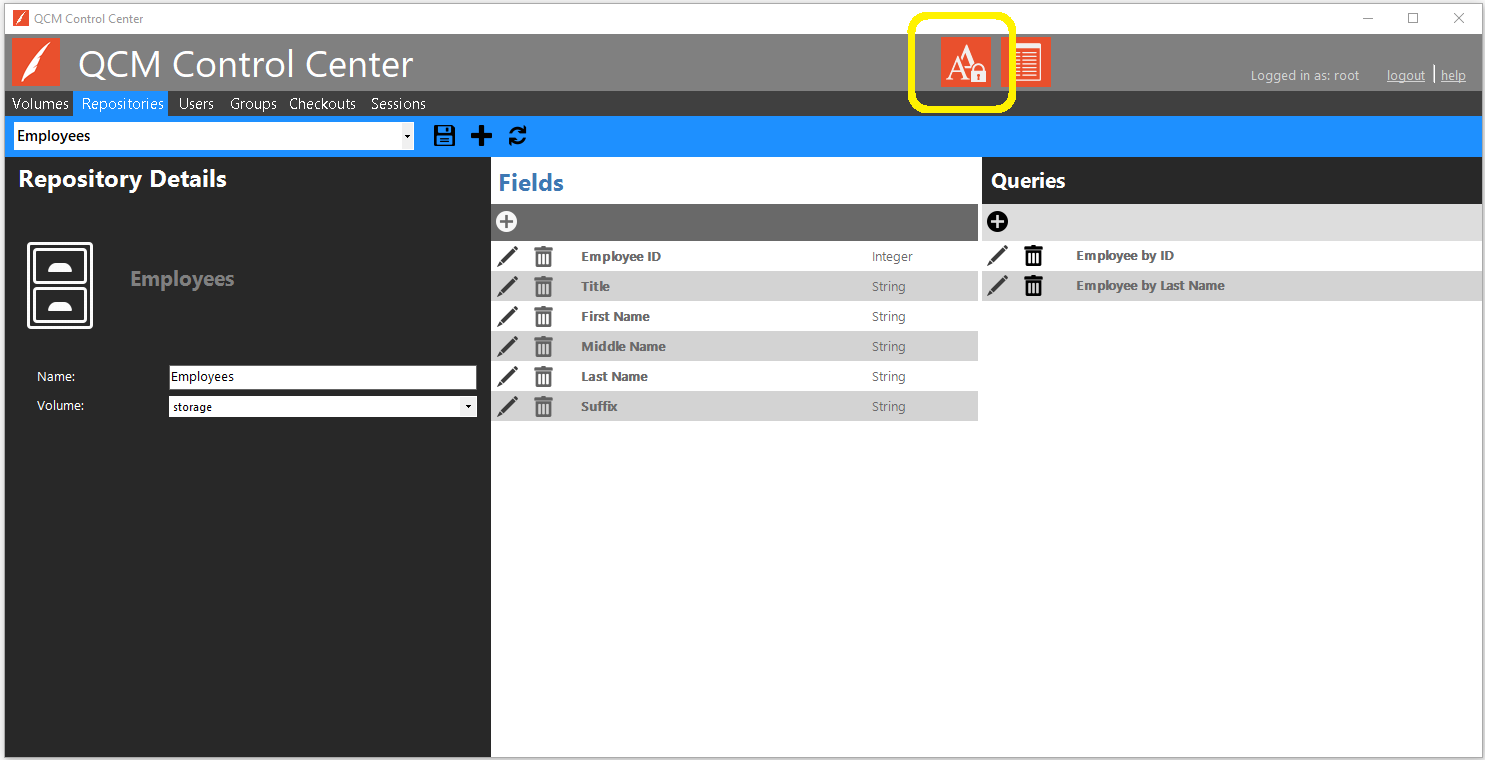
The Input Masks Editor can be started in two ways. The first way is to click the Input Masks Editor button from the QCM Control Center title bar, as shown here:
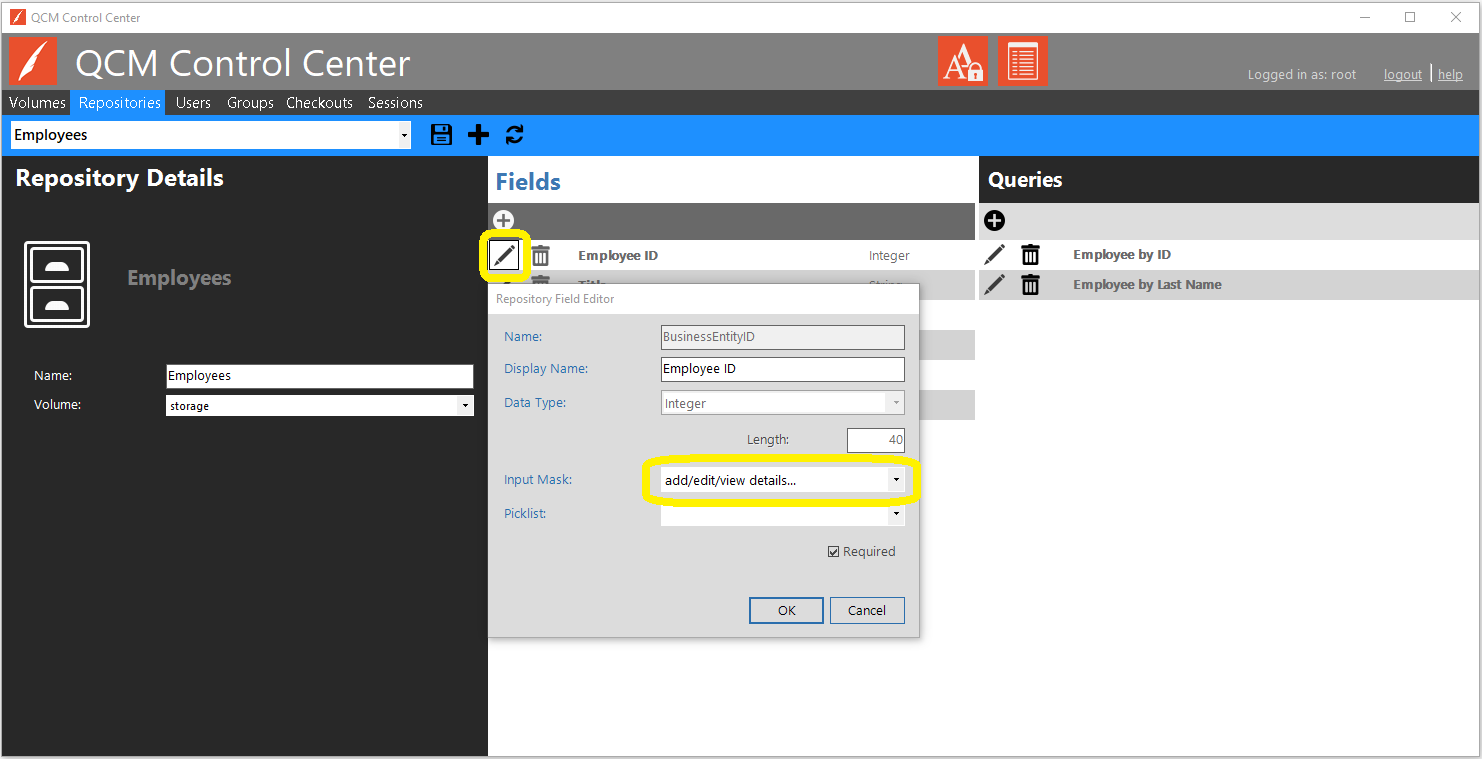
The Input Masks Editor can also be started when editing or adding Repository Fields, through the Repository Field Editor.
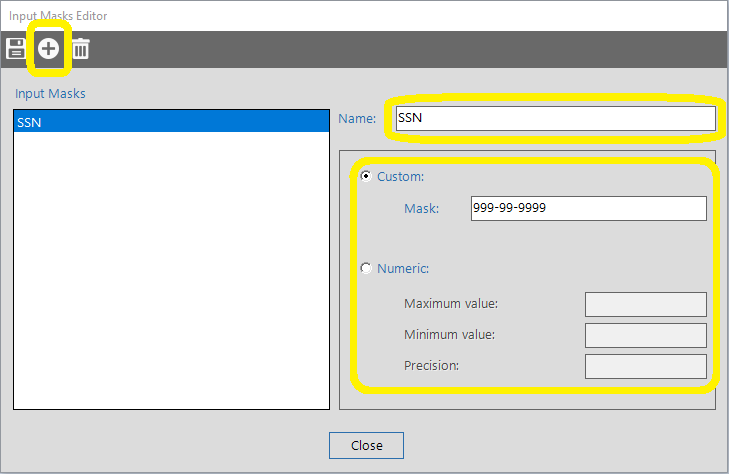
Click 'Add Input Mask' to add a new Input Mask. Provide a unique name for the Input Mask. Select to create a Custom or Numeric mask, and provide the necessary values. Click the Save button to accept the Input Mask.
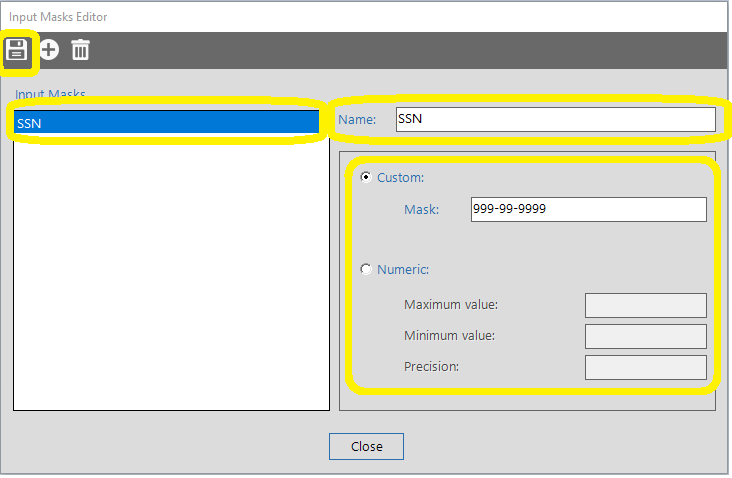
To edit an Input Mask, select the Input Mask from the list. The Name can be modified, but must still be unique. Edit the Input Mask values or change the mask type. Click the Save button to accept the Input Mask.
A ASCII alphabetic character required. A-Z, a-z.
a ASCII alphabetic character permitted but not required.
N ASCII alphanumeric character required. A-Z, a-z, 0-9.
n ASCII alphanumeric character permitted but not required.
X Any character required.
x Any character permitted but not required.
9 ASCII digit required. 0-9.
0 ASCII digit permitted but not required.
D ASCII digit required. 1-9.
d ASCII digit permitted but not required (1-9).
# ASCII digit or plus/minus sign permitted but not required.
H Hexadecimal character required. A-F, a-f, 0-9.
h Hexadecimal character permitted but not required.
B Binary character required. 0-1.
b Binary character permitted but not required.
> All following alphabetic characters are uppercased.
< All following alphabetic characters are lowercased.
\ Use \ to escape the special characters listed above to use them as separators.